
You did the hard part: the customer requested a quote, you priced it, and you sent it. Then the deal stalls — not because they said no, but because paying is a hassle. They reply "looks good, how do I pay?", you create an invoice, you send a link, they ask a question, and days slip by.
Accept & Pay closes that gap. Instead of ending your quote email with "let me know", it ends with a branded Accept & Pay button that takes the customer straight to Shopify checkout for that exact quote. They click, they pay, and the order appears in your Shopify admin like any other sale — on any Shopify plan, no Plus required.
This guide covers what Accept & Pay does, the two ways to turn it on, how the customer actually pays, and how it compares to native Shopify Plus B2B.
The B2B payment gap
Most quote apps stop at "send the quote." But a quote is not revenue — a paid order is. Between the two sits a surprising amount of friction:
- The customer has to reply and ask how to pay
- You manually create an invoice or a Shopify draft order and send a payment link
- The link is a plain, generic Shopify invoice that does not match your brand
- Every extra step is another chance for the deal to go cold
Accept & Pay removes all of it: the pay link is already in the quote, already branded, and already tied to the right prices.
What Accept & Pay does: two modes, both off by default
Accept & Pay has two independent modes in Settings → Accept & Pay. Both are off by default, so nothing changes for your store until you switch one on.
Mode 1: Auto-Invoice (hands-off)
When a customer submits a quote request, the app automatically creates a Shopify draft order at your catalog price and emails them a branded Accept & Pay quote — in place of the plain "we received your request" confirmation.
This is ideal for stores that hide prices for MAP compliance or B2B gating but still want a fast, self-serve path to payment. The customer requests, the app prices it at your real catalog price, and they can pay in the same email. No one on your team has to touch it.
Mode 2: Pay button on Send Quote (you control the price)
When you review a quote and click Send Quote, the email includes an Accept & Pay button at the price you quoted — after any percentage or fixed discount you applied. Use this when every deal needs a human to set the price, add freight, or negotiate, but you still want the customer to pay in one click.
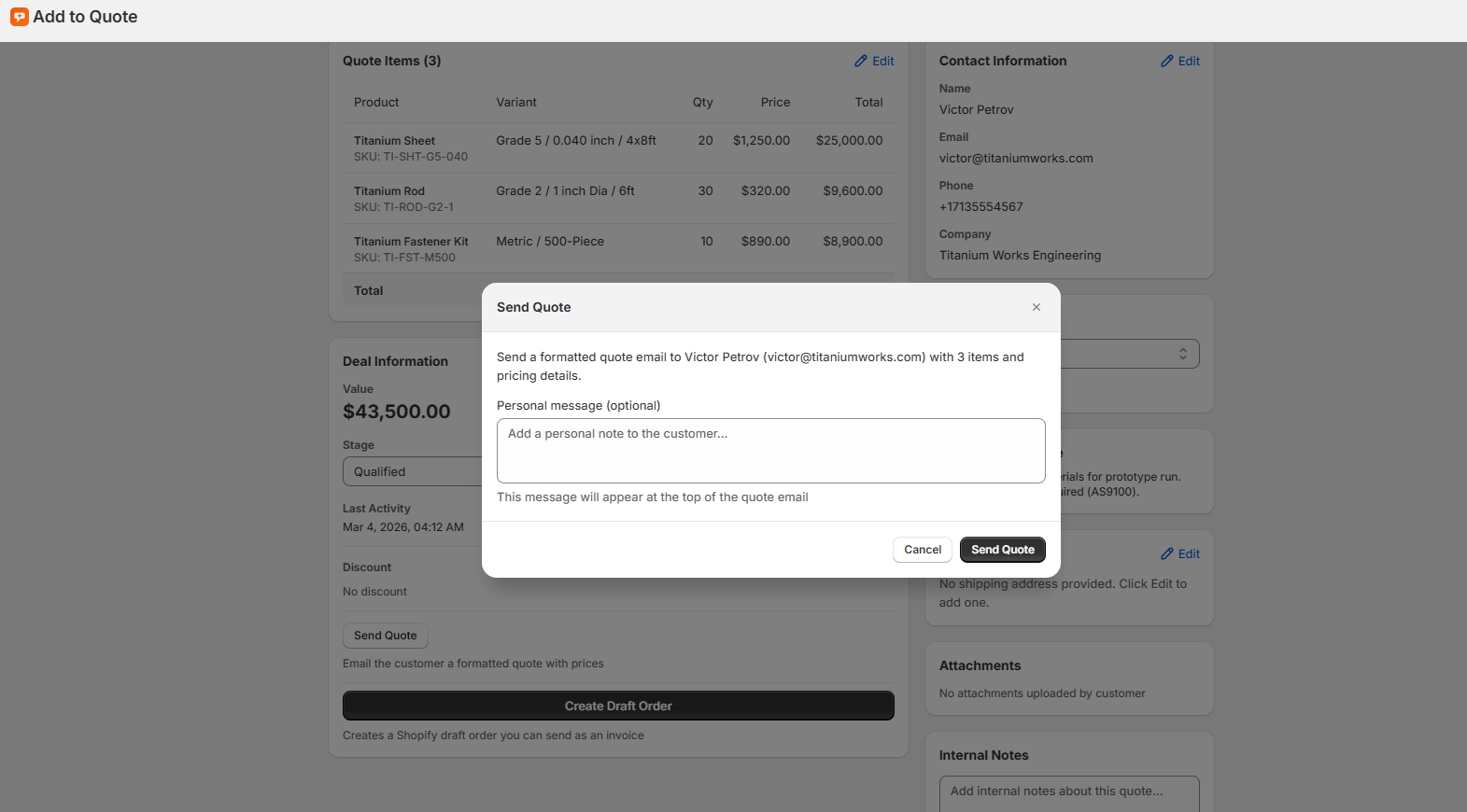
You can run either mode, both, or neither — they do not interfere with each other.
How the customer pays: native Shopify checkout
The Accept & Pay button is not a custom payment form. Behind the scenes, the app has already created a Shopify draft order for the quote, so the button opens the secure Shopify checkout for that order, pre-filled with the items, quantities, and agreed prices.
That means:
- Shipping, tax, and payment are handled by Shopify — the same checkout your retail customers use
- The customer pays with your existing payment providers (Shopify Payments, PayPal, etc.)
- Once paid, it becomes a normal Shopify order — so fulfilment, reporting, and taxes all work exactly as usual
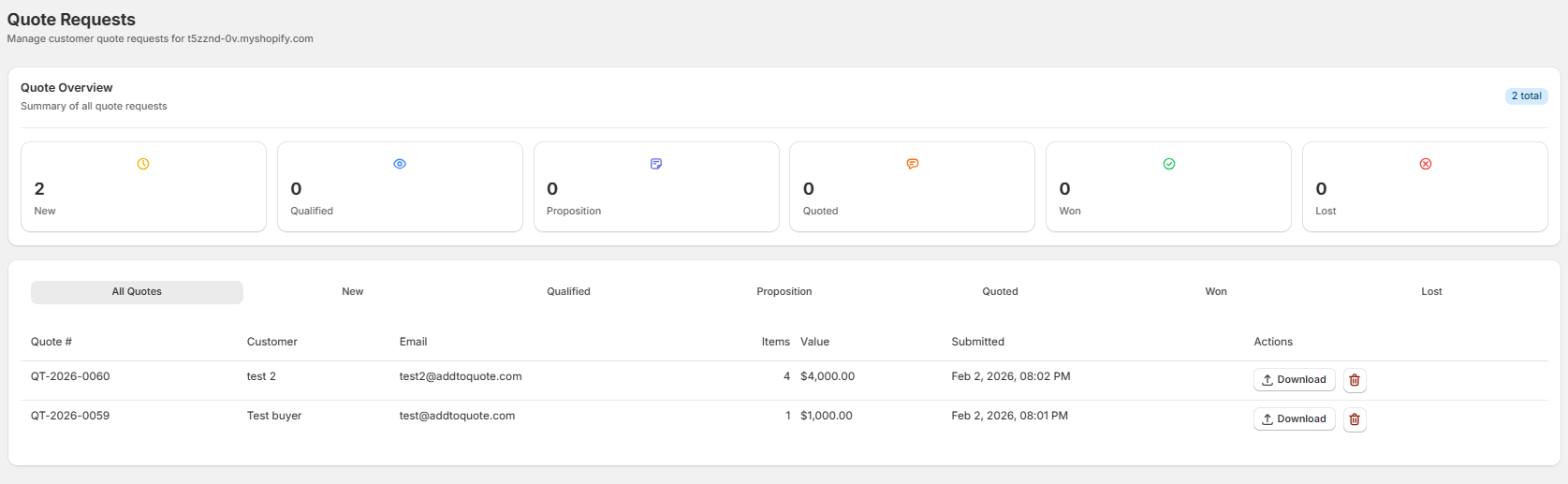
There is no separate "accept without paying" step — accepting and paying are the same action. Whether a customer must create an account is simply your standard Shopify checkout setting.
Setting it up
- In your Shopify admin, open AddToQuote → Settings → Accept & Pay
- Turn on Auto-Invoice (hands-off, catalog price) and/or the Send Quote pay button (your quoted price)
- Optionally customize the intro text, button label (for example, "Complete Your Purchase"), and button color
- Save — you are live
Because both toggles are off by default, existing stores keep their current behaviour until you decide to switch it on.
Customize the email — in 16 languages
The Accept & Pay email is fully branded with your store logo and colors, and every customer-facing string is translated into all 16 supported languages, so an international buyer receives the pay link in their own language. You control:
- Intro text — the line after "Dear {Customer}"
- Button label — e.g. "Accept & Pay" or "Complete Your Purchase"
- Button color — match your brand
Accept & Pay vs Shopify Plus B2B
Native Shopify Plus B2B (Companies, Catalogs, Price Lists, net terms at checkout) is powerful — but it requires Shopify Plus and it is built around pre-approved company accounts, not one-off quote requests.
Accept & Pay is different by design: it works on any plan, it starts from a quote request (not a company login), and it collects payment through standard Shopify checkout. If you are weighing the two, our guide on how to run B2B on Shopify without Plus breaks down when each approach makes sense. For automating the order side of things, see Shopify draft order automation for B2B quotes.
Frequently Asked Questions
What is Accept & Pay?
Accept & Pay lets a customer pay an approved quote online in one click. The quote email includes an Accept & Pay button that opens a real Shopify checkout for that quote, so the customer pays with your normal providers and the order lands in your admin like any other sale.
Do I need Shopify Plus?
No. Accept & Pay works on every Shopify plan and is available on all AddToQuote plans. It uses quoting plus native draft orders and checkout — not Plus-only B2B features.
Can I still negotiate the price first?
Yes. Use the Send Quote pay button mode: you set the final price (with any discount), then the email you send includes the pay button at that price. Auto-Invoice mode is for hands-off, catalog-price selling.
Will the customer see a branded email?
Yes — your logo, your colors, your intro text and button label, translated into their language. It replaces the generic Shopify invoice with something that looks like you.
Bottom line
A quote sitting in an inbox is not revenue. Accept & Pay turns "let me know" into "click to pay" — a branded pay link, already tied to the right prices, that drops the customer into native Shopify checkout on any plan. Turn it on hands-off (Auto-Invoice) or keep a human in the loop (Send Quote pay button), customize the email, and start converting approved quotes into paid orders.
Ready to get paid faster? Install AddToQuote and start a 14-day free trial, or read the Accept & Pay setup docs for the full walkthrough.
Mohammad Mahdawi
Founder, AddToQuote
Founder of AddToQuote. 15+ years in B2B and B2C e-commerce, building tools that help merchants quote and close more deals.

