
Every B2B merchant knows the frustration: a customer agrees to your quoted price, and now you have to manually recreate the entire order in Shopify. Product details, quantities, custom prices, customer information, shipping addresses — all typed in by hand. One mistake means a billing dispute or a fulfillment error.
AddToQuote eliminates this bottleneck with one-click draft order creation. Open the quote detail in your CRM, click Create Invoice, and everything transfers to a Shopify draft order instantly. No re-entry, no copy-pasting, no errors.
What Are Shopify Draft Orders?
Draft orders are pre-built orders in Shopify that haven't been paid yet. They let you create an order with specific products, custom prices, and customer details, then send an invoice when you're ready. According to Shopify's draft order documentation, draft orders support custom line items, discount codes, tax overrides, and multiple payment options.
Draft orders are available on every Shopify plan — Basic, Standard, Advanced, and Plus. You don't need an expensive upgrade to use them.
For B2B merchants, draft orders bridge the gap between a negotiated quote and a paid order. Instead of asking your customer to check out through the storefront at full price, you send them an invoice with the exact pricing you agreed on.
The Manual Quote-to-Order Problem
Without a quoting tool, converting an approved quote to a Shopify order looks like this:
- Customer confirms they want to proceed (via email or phone)
- Open Shopify admin and click "Create order"
- Search for the customer or create a new record
- Add each product one by one with the correct variant
- Override the price on each line item to match the quoted price
- Apply any negotiated discounts
- Enter shipping and billing addresses
- Double-check everything, then send the invoice
Average time per order: 15-20 minutes of manual data entry.
Multiply that by the number of quotes you close each week. If you process 20 orders per week, that's over 5 hours spent on data entry alone — time your team could spend on selling, following up on open quotes, or building customer relationships.
The manual process also introduces errors. A wrong variant, a mistyped price, or a missing discount can lead to customer complaints, re-work, and lost trust. For a deeper look at building an efficient quoting workflow, read our B2B quote management guide.
How AddToQuote Creates Draft Orders
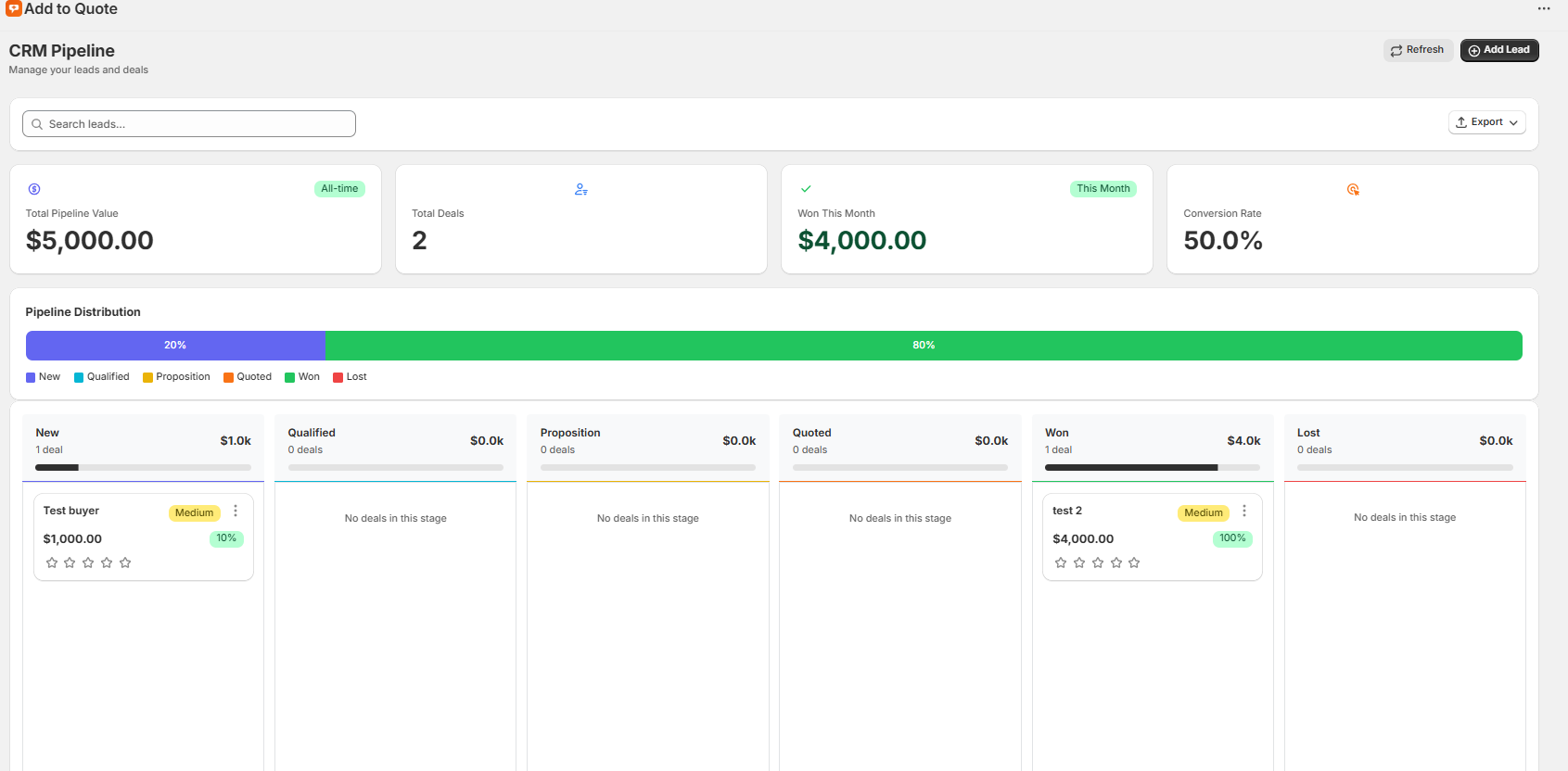
AddToQuote's CRM pipeline tracks every quote from the moment a customer submits a request through to close. When a quote is ready to convert, you do it from the same interface where you've been managing the deal — no switching between apps.
Step 1: Customer Requests a Quote
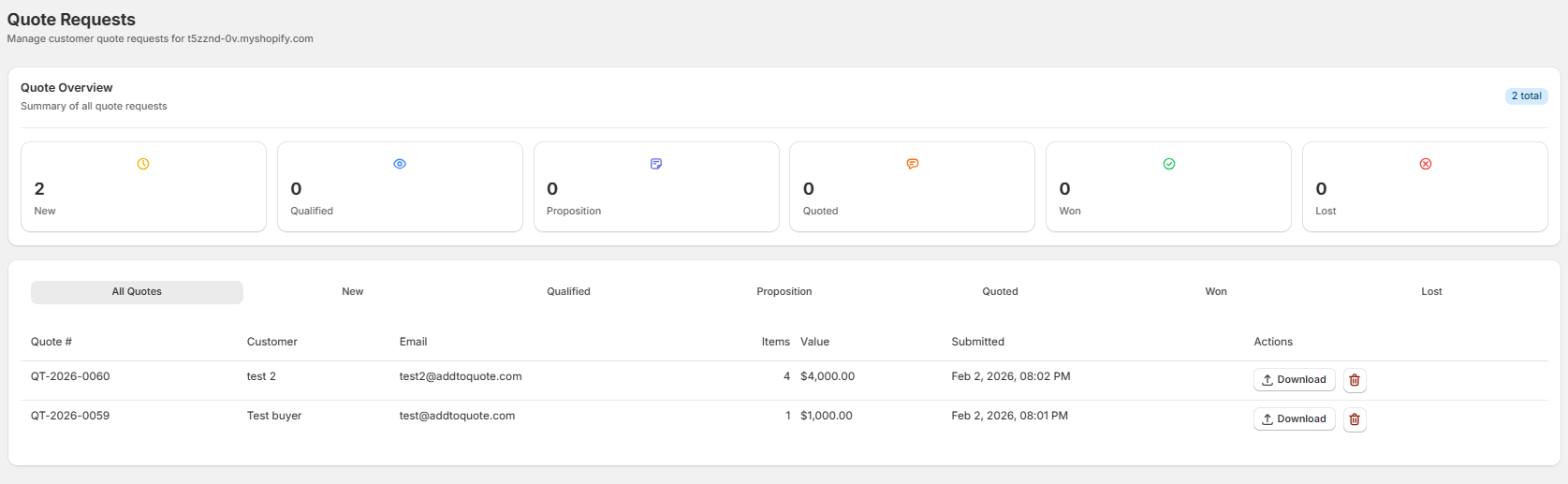
A customer visits your store, adds products to their quote cart, and fills out a customizable form with their contact details and requirements. The quote request lands in your CRM pipeline as a new lead.
Step 2: Review and Set Pricing
Open the quote in your CRM. You see every product the customer requested, including variants and quantities. Adjust individual line item prices based on volume, customer relationship, or negotiation. Add discounts, notes, or internal comments for your team.
Step 3: Send the Quote
Generate a branded PDF quote with your company logo, terms, and line items. Send it to the customer directly from the app via email. The PDF includes all product details, pricing, and your terms of business.
Step 4: Quote Approved
The customer reviews your quote and confirms they want to proceed. Update the quote status in your pipeline — move it to the "Won" stage. The quote is now ready for conversion.
Step 5: Create the Draft Order
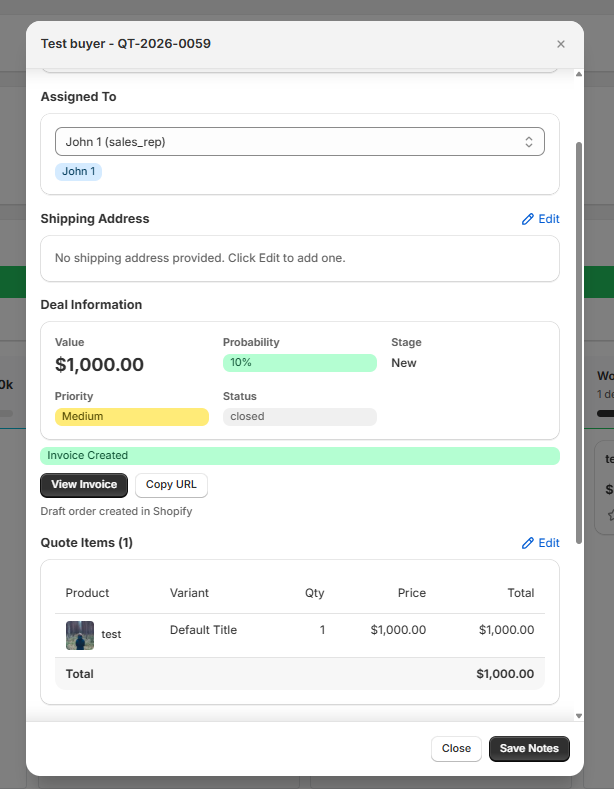
This is where the manual process disappears. In the quote detail modal, click the Create Invoice button. With that single click, AddToQuote:
- Creates a Shopify draft order using the
draftOrderCreateAPI - Transfers all products with their exact variant IDs and quantities
- Applies the custom unit prices you set during negotiation
- Includes the customer's email, phone, and shipping address
- Reflects any quote discounts in the line item prices
- Adds the quote number as an order note for cross-referencing
- Links the draft order back to the original quote for reference
The quote detail updates to show an "Invoice Created" badge, along with a "View Invoice" button that takes you directly to the draft order in Shopify and a "Copy URL" button to share the invoice link. The quote status changes to closed.
Step 6: Send the Invoice
The draft order now appears in your Shopify admin under Orders > Drafts. Review it one final time, make any last adjustments if needed, and click "Send invoice." The customer receives an email with a link to complete payment through your standard Shopify checkout.
What Transfers to the Draft Order
When you click Create Invoice, everything from the quote carries over:
- Products and variants — exact product variant IDs, not just names
- Quantities — the quantities agreed upon in the quote
- Custom unit prices — the negotiated price per line item
- Customer information — email address and phone number
- Shipping and billing addresses — pre-filled from the quote request
- Discounted prices — if a percentage or fixed discount was applied to the quote, the discounted unit prices are set on each line item
- Quote reference — the quote number is added as an order note for easy cross-referencing
- Custom attributes — line item properties (custom fields, product options) carry over as custom attributes
No manual re-entry is required. The draft order is an exact mirror of the approved quote.
Why Draft Orders Work for B2B
Draft orders solve five specific problems that B2B merchants face daily:
1. Custom pricing without checkout hacks. You can set any price per line item on a draft order. No need for discount codes, price rules, or Shopify Scripts. The price the customer sees on the invoice is the price you quoted — exactly.
2. Invoice-based payment. Not every B2B customer pays immediately. Draft orders let you send an invoice that the customer can pay on their own schedule. Pair this with payment terms and you have a professional invoicing workflow.
3. Full Shopify order tracking. Once the customer pays, the draft order converts to a regular order. It flows through your normal fulfillment process — inventory updates, shipping labels, tracking numbers, and order confirmations. Your operations team doesn't need a separate system.
4. Automation compatibility. Paid draft orders trigger all the same automations as regular orders. Shopify Flow workflows, inventory management, accounting integrations, and fulfillment services all work as expected. For a detailed comparison of what's available on each Shopify plan, see our Shopify B2B vs Plus comparison.
5. Audit trail. The quote and draft order remain linked. You can always trace back from an order to the original quote request, see the negotiation history, and reference the PDF that was sent to the customer.
Time Savings Calculator
The table below shows how much time you save by converting quotes with one click instead of manually creating draft orders in Shopify:
| Quotes/Month | Manual (15 min each) | One-Click | Time Saved | Savings at $30/hr |
|---|---|---|---|---|
| 50 | 12.5 hrs | 0.8 hrs | 11.7 hrs | $351 |
| 100 | 25 hrs | 1.7 hrs | 23.3 hrs | $700 |
| 200 | 50 hrs | 3.3 hrs | 46.7 hrs | $1,400 |
At 100 quotes per month, you save over 23 hours and $700 in labor costs — well above the cost of the app. That's time your sales team can reinvest in following up on open quotes and closing more deals. For more strategies on improving your close rate, see 7 ways to convert B2B quotes into sales.
Best Practices for Quote-to-Order Conversion
1. Set Clear Expiration Dates
Every quote should include an expiration date — 7 days for standard quotes, 14 days for complex orders, 30 days for enterprise accounts. Expiration dates create natural urgency and prevent customers from sitting on outdated pricing indefinitely. When a quote expires, you have a reason to follow up and re-engage.
2. Include All Terms Upfront
Before sending a quote, make sure it includes payment terms, shipping method, estimated delivery timeline, and any conditions. Quotes that include complete terms convert faster because there's nothing left to negotiate after the customer says yes. Incomplete quotes lead to back-and-forth emails that delay the deal.
3. Review Before Converting
Even though one-click conversion is fast, take a moment to review the quote before clicking Create Invoice. Confirm the line items, double-check the pricing, and verify the customer's shipping address. A 30-second review prevents billing disputes and re-work.
4. Follow Up on Pending Quotes
Not every quote converts on the first send. Use the CRM pipeline to track which quotes are still pending. Follow up at day 3 with a check-in, day 7 with a gentle reminder, and day 14 with a final notice before expiration. Systematic follow-up is the difference between a 25% and a 45% conversion rate.
5. Track Your Conversion Metrics
Monitor your quote-to-order conversion rate, average time from quote sent to close, and average deal value. These metrics tell you whether your pricing is competitive, your follow-up is effective, and your pipeline is healthy. Industry average is 25-30% — top performers using structured quoting workflows consistently hit 40-60%.
If you're unsure whether your store would benefit from a dedicated quoting tool, check 5 signs your Shopify store needs a quote app.
Frequently Asked Questions
Does AddToQuote automatically convert quotes to draft orders?
No. AddToQuote gives you one-click draft order creation from any quote. You review the quote, confirm the details, and click Create Invoice when ready. This keeps you in full control of every conversion.
What information carries over to the draft order?
Everything from the quote transfers: product details, quantities, variants, custom pricing, and customer information. No manual re-entry is required.
Can I edit the draft order after creating it?
Yes. Once the draft order is created in Shopify, you can edit it like any other draft order. Adjust line items, change prices, add discounts, or modify shipping details before sending the invoice.
Does the customer receive an invoice automatically?
No. The draft order is created in Shopify, but you choose when to send the invoice. Review the draft order first, make any final adjustments, and send the invoice from your Shopify admin when ready.
Do I need Shopify Plus to create draft orders?
No. Draft orders are available on all Shopify plans including Basic, Standard, and Advanced. AddToQuote works with any Shopify plan to create draft orders from quotes.
What happens to the quote after I create a draft order?
The quote status updates to closed in your CRM pipeline. You can still view the original quote, the PDF, and the full history. The quote and draft order remain linked for reference.
Bottom Line
The gap between an approved quote and a paid order shouldn't take 15 minutes of manual work. With AddToQuote, it takes one click. Every product, every price, every customer detail transfers to a Shopify draft order instantly — no re-entry, no errors, no wasted time.
Install AddToQuote from the Shopify App Store and start converting quotes to draft orders today. Or if you'd like a walkthrough first, book a demo and we'll show you the full quoting workflow for your store.
Mohammad Mahdawi
Founder, AddToQuote
Founder of AddToQuote. 15+ years in B2B and B2C e-commerce, building tools that help merchants quote and close more deals.


