
Manual quote management is expensive. Every quote request that requires a human to copy customer data into Shopify, manually create a draft order, move a pipeline card, or remember to send a follow-up email is a bottleneck that costs you time and money. When you are handling 5 quotes per week, manual workflows are annoying but manageable. At 50 quotes per day, they become impossible. The good news: AddToQuote now integrates with Shopify Flow to automate your entire quote lifecycle — from initial request to draft order conversion to customer follow-up. You can eliminate hours of repetitive work per week while reducing errors and improving response times. If you are running a B2B or wholesale operation on Shopify, automation is not optional anymore. This guide shows you exactly how to set it up. For foundational context on B2B quote management, read our complete B2B quote management guide for Shopify wholesalers.
Why Automate Your Quote Workflow
Manual quote management compounds costs in three ways: time per quote, error-prone data entry, and missed follow-ups. If each quote requires 10 minutes of manual work (reading the request, creating a draft order, updating your CRM, sending an email), that is 50 minutes per day at 5 quotes or 8+ hours per day at 50 quotes. You cannot scale a business when every new quote request requires direct human intervention.
Data entry errors are inevitable with manual workflows. A typo in a product variant, a missed custom request in the notes field, or a wrong shipping address copied into Shopify creates customer friction and internal confusion. Worse, manual systems rely on memory — your team has to remember to follow up on quotes stuck in "Qualified" stage for 3 days, remember to check if a quote was viewed, remember to convert pre-approved customer quotes immediately.
The real cost shows up when you compare 10 quotes per week versus 50 per day. At low volume, one person can handle everything. At scale, you need multiple team members, a manager to coordinate handoffs, and regular meetings to discuss which quotes fell through the cracks. Automation eliminates the entire coordination tax. Quotes get routed to the right person automatically, high-value customers get instant conversions, and nothing falls through the cracks because machines do not forget. Learn more about converting quotes to sales with B2B strategies.
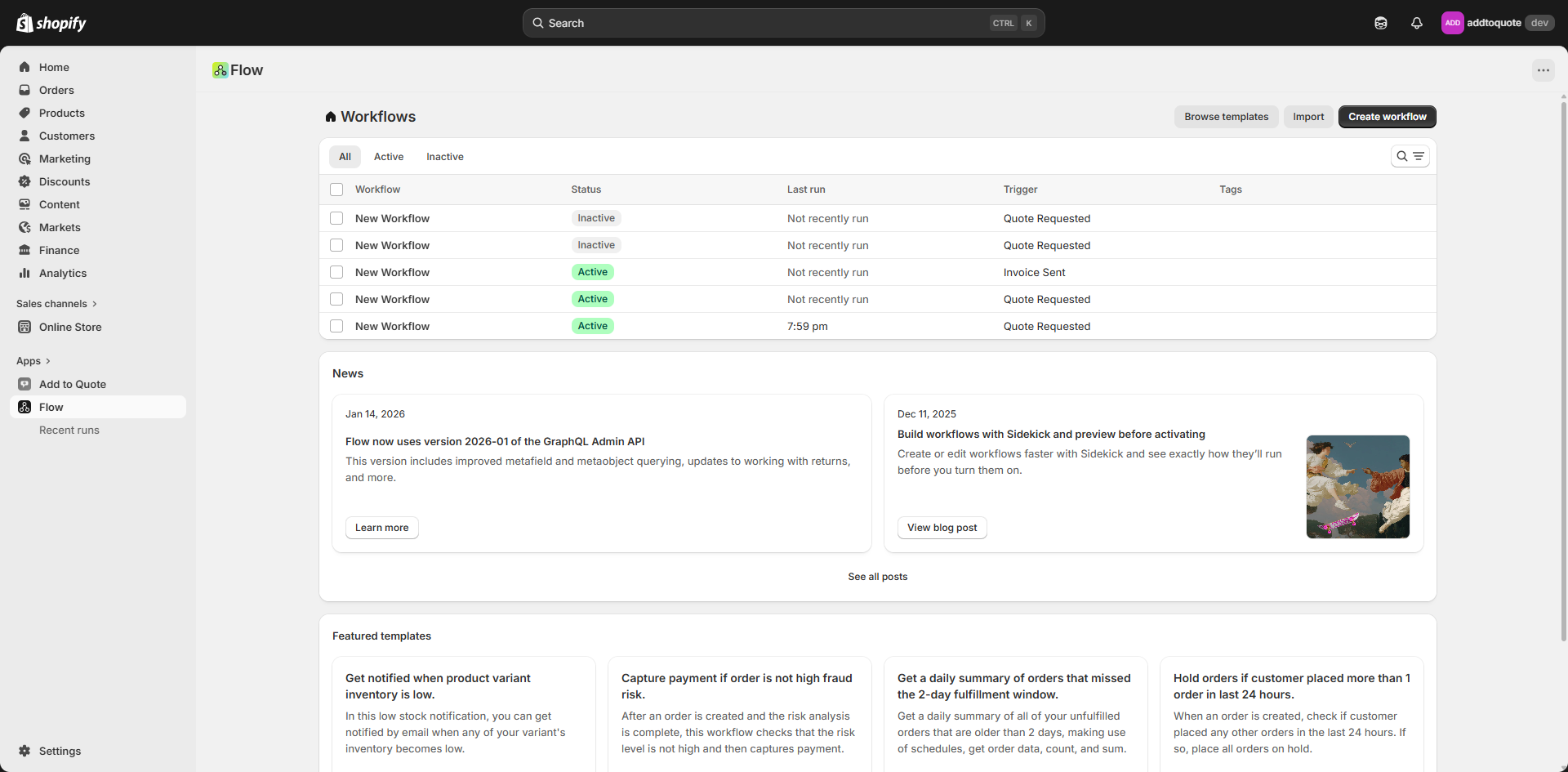
Shopify Flow gives you visual automation without code. You define triggers (what event starts the automation), conditions (what filters decide if the automation runs), and actions (what happens when conditions are met). AddToQuote provides 8 triggers and 4 actions that plug directly into Flow's automation builder. For detailed documentation on Shopify Flow itself, see the official Shopify Flow documentation.
What is Shopify Flow?
Shopify Flow is Shopify's built-in visual automation builder. It lets you create "if-this-then-that" workflows without writing code. The basic model is simple: a trigger fires when something happens (a quote is requested, an order is paid, a product goes out of stock), then conditions filter whether the workflow should continue (only if order value > $500, only if customer tag = "VIP"), then actions execute the automation (send an email, add a customer tag, update inventory).
Flow runs entirely within your Shopify admin. No third-party accounts, no Zapier credits, no API keys to manage. You build workflows by dragging and dropping visual blocks in a flowchart interface. Once you turn a workflow on, it runs automatically in the background. You can see a log of every workflow execution, including which triggers fired, which conditions passed, and which actions completed.
Shopify Flow is now available on both Shopify Advanced and Shopify Plus plans. It used to be Plus-only, but as of late 2023, Shopify expanded access to Advanced-tier merchants. If you are on Basic or Standard plans, you will not have access to Flow — but if you are running a B2B operation at scale, you likely need Advanced or Plus anyway for features like B2B checkout, customer-specific pricing, and wholesale channels.
Flow is completely free — there are no per-automation fees, no execution limits, and no hidden costs. It is one of the most underrated features in Shopify's platform, especially for B2B merchants who need to automate repetitive tasks across quotes, orders, customers, and inventory.
AddToQuote's 7 Shopify Flow Triggers
AddToQuote provides 7 Shopify Flow triggers that fire at different points in your quote lifecycle. Each trigger includes structured data fields you can use in conditions and actions. Here is what each trigger does and when to use it.
Quote Requested
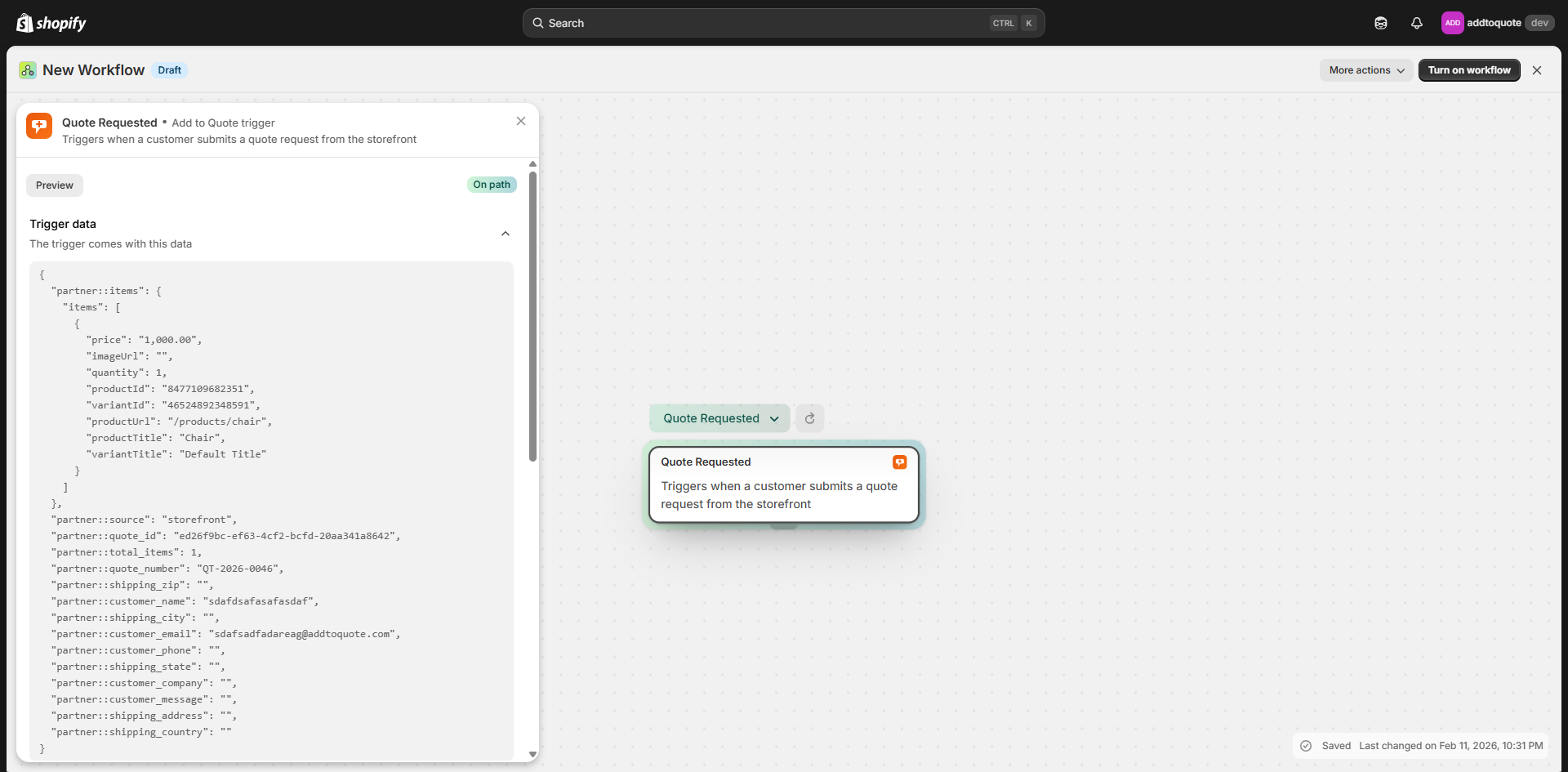
This trigger fires every time a customer submits a quote request through your storefront. It includes 15 data fields: customer email, customer name, phone number, shipping address (street, city, province, postal code, country), custom message, quote total, product count, and a structured list of requested items (product title, variant title, quantity, price). This is the most commonly used trigger because it fires at the top of your quote funnel.
Use case: Auto-assign quotes to specific team members based on region, product category, or customer attributes. Example: if shipping state equals "California," assign the quote to your West Coast sales rep. Because this trigger fires before a customer account is created in Shopify, it does not include a customer_reference field — you cannot directly tag or modify the customer in Flow until after the quote is converted.
Quote Stage Changed
This trigger fires whenever a quote moves from one pipeline stage to another. It includes 7 data fields: quote ID, quote number, old stage name, new stage name, customer email, assignee name, and total amount. Use this for stage-based notifications — alert your manager when a quote reaches "Proposition" stage, send an internal Slack message when a quote moves to "Lost," or trigger a follow-up email sequence when a quote enters "Quoted."
Use case: Automatically send a follow-up reminder to your sales team if a quote has been stuck in "Qualified" for 3 days. Pair this trigger with Shopify's delay action to create time-based automations.
Quote Converted
This trigger fires when a quote is manually or automatically converted to a Shopify draft order. It includes 9 data fields: quote ID, quote number, draft order GID (Shopify's global ID for the draft order), draft order admin URL, customer email, total amount, currency, and conversion timestamp. This is the only AddToQuote trigger that includes a customer_reference field, which means you can use Shopify's native "Add customer tags" action to tag customers based on quote value, product type, or any other attribute.
Use case: Automatically tag customers as "High-Value B2B" if their converted quote total exceeds $5,000. Tag customers by product category ("Bulk Electronics Buyer") based on which products were in the converted quote. This is critical for segmenting your B2B customer base for email marketing, pricing tiers, and customer-specific discounts.
Quote Assigned
This trigger fires when a quote is assigned to a specific team member. It includes 6 data fields: quote ID, quote number, assignee name, assignee email, customer email, and assignment timestamp. Use this for team coordination — send an email or Slack notification to the newly assigned team member, log the assignment in an external CRM, or update a Google Sheet with current quote ownership.
Use case: Automatically send an email to the assigned team member with a direct link to the quote detail page and a summary of customer requirements.
Quote Note Added
This trigger fires whenever a note is added to a quote (manually by a team member or automatically via Flow action). It includes 5 data fields: quote ID, quote number, note content, note author, and timestamp. Use this for collaboration tracking — alert managers when specific keywords appear in notes ("urgent," "pricing issue," "competitor mention"), or log notes to an external system for compliance and audit trails.
Use case: If a note contains the word "urgent," send a Slack notification to your sales manager with the quote number and note text.
Quote Deleted
This trigger fires when a quote is permanently deleted from your system. It includes 4 data fields: quote ID, quote number, customer email, and deletion timestamp. Use this for cleanup workflows — remove the customer from email sequences, delete related data in external systems, or log deletions for audit purposes.
Use case: When a quote is deleted, automatically remove the customer email from your "Active Quote Follow-Up" email list in your marketing platform.
Invoice Sent
This trigger fires when a draft order invoice is sent to a customer (either manually from Shopify admin or automatically via AddToQuote's "Send Invoice" Flow action). It includes 5 data fields: quote ID, draft order GID, customer email, invoice amount, and send timestamp. Use this for payment follow-up — trigger a reminder email 48 hours after invoice send if payment has not been received, log invoice sends in your accounting system, or notify your finance team.
Use case: Automatically create a task in your project management tool to follow up with the customer 2 days after the invoice is sent.
AddToQuote's 4 Shopify Flow Actions
In addition to triggers that detect events, AddToQuote provides 4 Shopify Flow actions that let you modify quotes and automate quote operations directly from Flow. Actions are the "then do this" part of your automation.
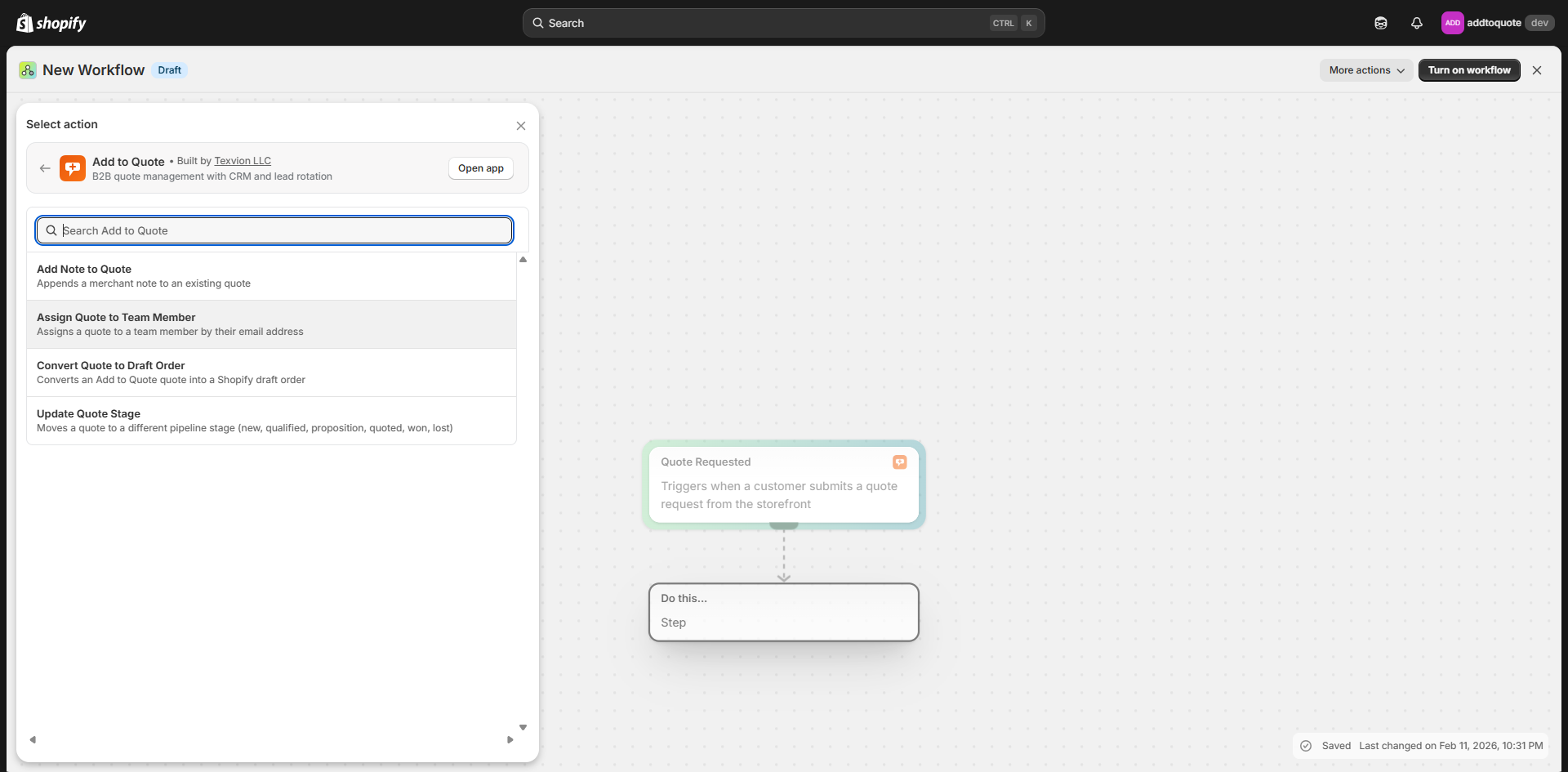
Convert Quote to Draft Order
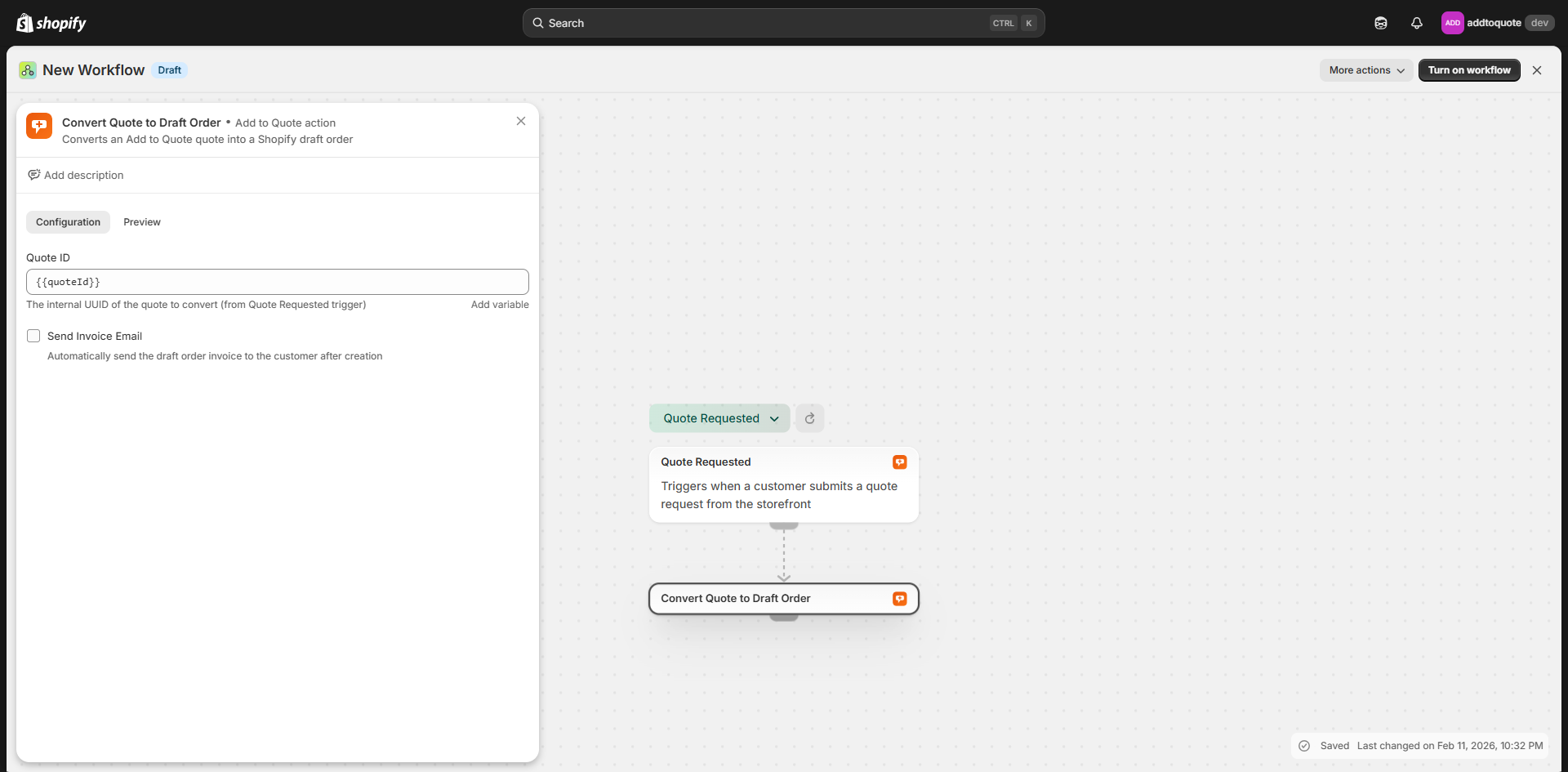
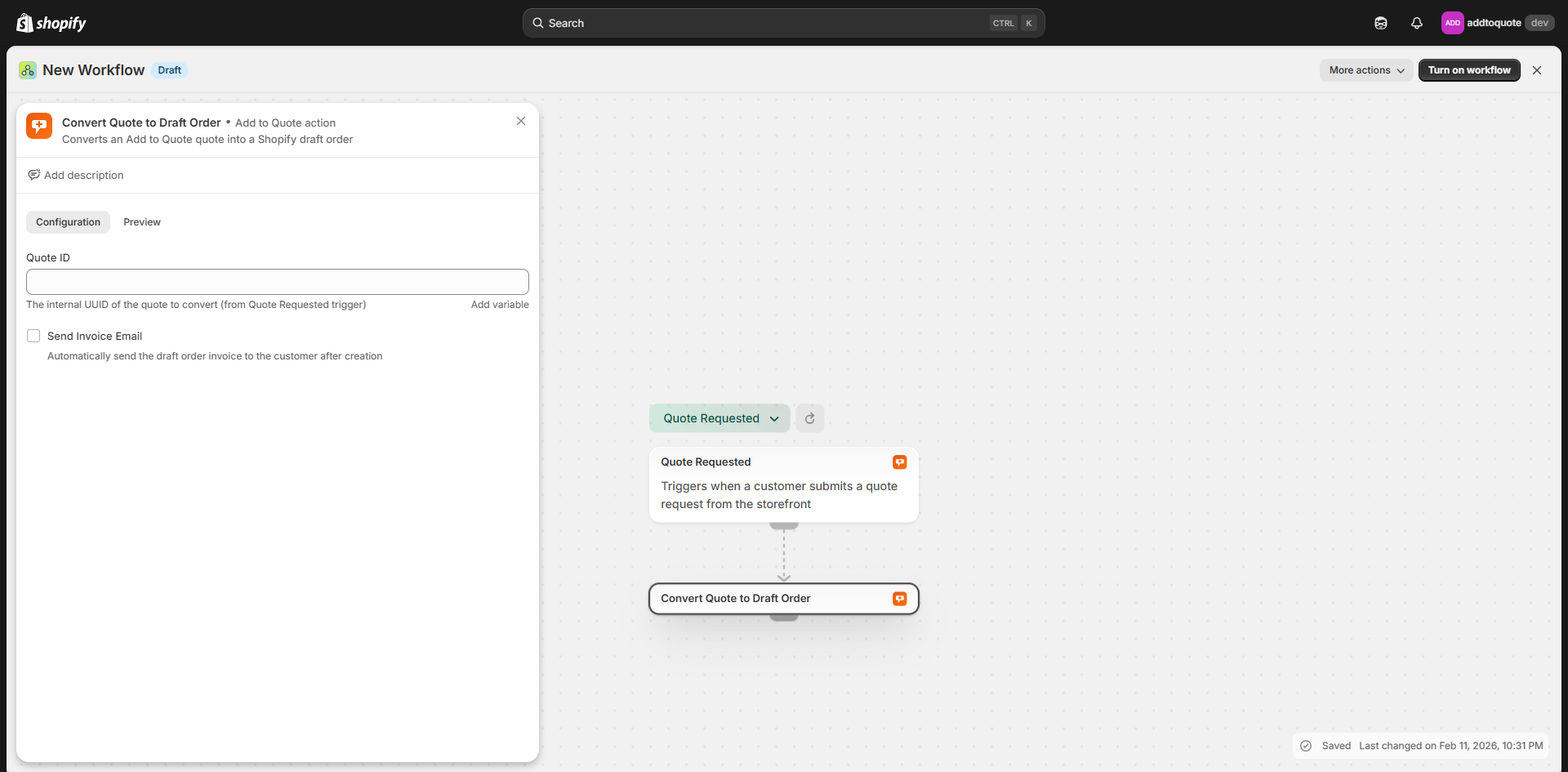
This action converts any quote to a Shopify draft order automatically. It accepts a quote ID as input and optionally a "send invoice" flag. When the action runs, AddToQuote creates a draft order in Shopify with all products, quantities, customer information, and custom pricing from the quote. If you enable "send invoice," the draft order invoice is immediately emailed to the customer via Shopify's invoice system.
The action is idempotent, meaning if Flow accidentally runs the same conversion twice (rare but possible due to retry logic), AddToQuote detects the duplicate and returns the existing draft order instead of creating a second one. This prevents double-billing and duplicate orders. Use this action to eliminate manual conversion work — automatically convert quotes from pre-approved customers, convert quotes above a certain value threshold instantly, or convert quotes that have been in "Quoted" stage for more than 7 days.
Update Quote Pipeline Stage
This action moves a quote to any pipeline stage: New, Qualified, Proposition, Quoted, Won, or Lost. It accepts a quote ID and a target stage name. Use this to automate pipeline movement based on external events — move a quote to "Won" when the associated draft order is paid, move a quote to "Lost" if no response is received within 14 days, or move high-value quotes directly to "Qualified" to skip the "New" stage.
Assign Quote to Team Member
This action assigns a quote to a specific team member. It accepts a quote ID and either a team member ID or email address. Use this for intelligent routing — assign quotes based on customer location, product expertise, quote value, or round-robin distribution. Pair this with conditions to build complex assignment logic: assign quotes over $10,000 to senior reps, assign quotes with custom products to your engineering team, assign quotes from existing customers to their previous rep.
Add Note to Quote
This action appends a note to a quote. It accepts a quote ID and note text. Notes added via Flow are automatically prefixed with [Flow] to distinguish them from manually entered notes. The action appends only — it never overwrites existing notes, so you can safely run this action multiple times on the same quote.
Use this to create audit trails and context — log why a quote was auto-assigned, record external system data (a credit check result from your ERP), or add timestamped reminders. Notes are visible to your entire team in the quote detail page.
Real-World Automation Workflows
Theory is useful, but practical examples show you exactly how to combine triggers, conditions, and actions into powerful automations. Here are 4 real-world workflows you can build today.
Auto-Tag High-Value Customers
Trigger: Quote Converted
Condition: Quote total amount is greater than $5,000
Action: Add customer tag "High-Value B2B"
This workflow automatically segments your customer base by quote value. Because the Quote Converted trigger includes a customer_reference field, Shopify's native "Add customer tags" action works directly. Once tagged, you can create customer-specific pricing rules, exclusive discount codes, or VIP email sequences. You can also layer additional tags based on product category — tag customers who buy electronics as "Electronics Buyer," customers who buy apparel as "Apparel Buyer," and so on.
Auto-Assign Quotes by Region
Trigger: Quote Requested
Condition: Shipping address state/province equals "California"
Action: Assign Quote to Team Member (West Coast Rep)
This workflow routes quotes to the right salesperson based on geography. You can create multiple versions of this workflow for different regions: one for California, one for Texas, one for New York, and a fallback workflow that assigns quotes with no matching region to a general inbox or rotating assignment. Regional assignment reduces response times, improves customer relationships, and balances workload across your team.
Instant Conversion for Pre-Approved Customers
Trigger: Quote Requested
Condition: Customer tag contains "pre-approved"
Action: Convert Quote to Draft Order (with "send invoice" enabled)
This workflow creates a fully hands-free quote-to-order pipeline for trusted customers. When a pre-approved customer submits a quote request, Flow automatically converts it to a draft order and emails the invoice within seconds. The customer receives a payment link immediately, and your team never touches the quote unless there is a problem. Pre-approved customers do not need sales review — they have established credit terms, verified addresses, and a history of prompt payment.
Follow-Up on Lost Quotes
Trigger: Quote Stage Changed
Condition: New stage equals "Lost"
Action: Send email to sales manager with quote details
This workflow alerts your leadership team whenever a deal is lost. The email includes the quote number, customer email, total amount, and a link to the quote detail page. Your manager can review why the quote was lost (competitor pricing, product availability, timeline mismatch) and decide whether to intervene or adjust strategy. Lost quotes contain valuable intelligence — they tell you where your pricing is not competitive and which customer segments you are losing to competitors.
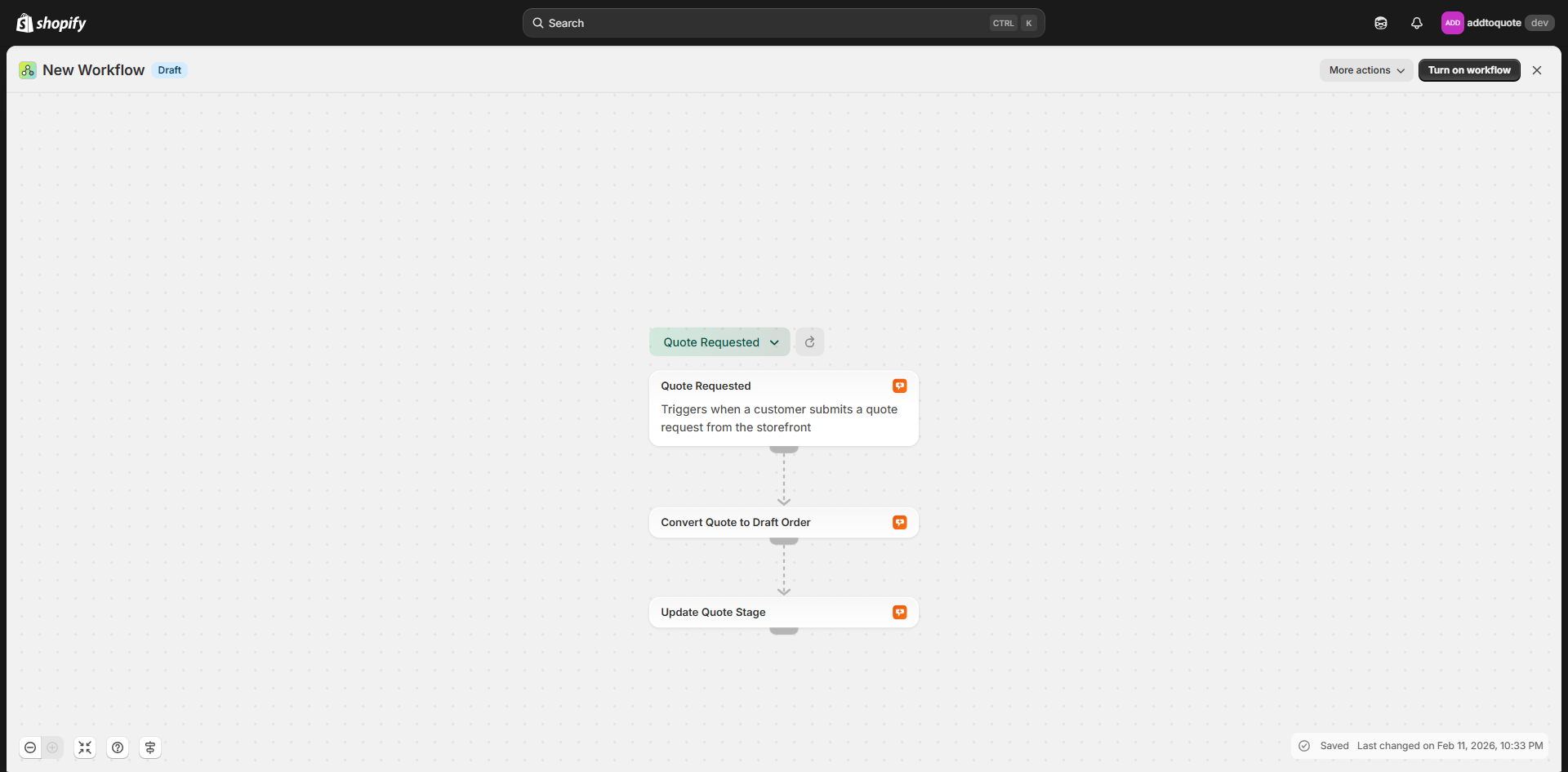
How to Set Up Your First Quote Automation
Building your first Shopify Flow automation for quotes takes less than 10 minutes. Here is the step-by-step process.
Step 1: Install AddToQuote and complete onboarding. You need an active AddToQuote subscription and at least one quote in your system to test automations. If you have not installed AddToQuote yet, install it from the Shopify App Store and follow the onboarding wizard to configure your quote button, form fields, and email settings.
Step 2: Open Shopify Flow from your Shopify admin. Navigate to Settings → Apps and sales channels → Shopify Flow, or use the search bar in your admin and type "Flow." Click "Create workflow" to open the visual automation builder.
Step 3: Select an AddToQuote trigger. Click "Select a trigger" and search for "AddToQuote" in the app filter. You will see all 7 available triggers. For your first automation, choose "Quote Requested" — it is the most common trigger and fires every time a customer submits a quote. Once selected, you will see a list of available data fields (customer email, products, shipping address, etc.) that you can reference in conditions and actions.
Step 4: Add conditions and actions. Click the "+" button below the trigger to add a condition. For example: "If quote total is greater than $1,000." Then add an action — try "Assign quote to team member" and select a team member from the dropdown. Save the workflow and toggle it to "Active." Submit a test quote from your storefront that matches the condition, then check Shopify Flow's workflow log to confirm the automation ran.
Limitations to Know
Shopify Flow is powerful but has a few limitations you should understand before building complex automations.
Flow is only available on Shopify Advanced and Plus plans. If you are on Basic or Standard, you will not have access to Flow. For most B2B merchants, this is not a blocker — you likely need Advanced or Plus anyway for wholesale features, customer-specific pricing, and higher order volume limits. But if you are on a lower-tier plan and want automation, you will need to upgrade.
The Quote Requested trigger does not include a customer_reference field. This is by design: when a customer submits a quote request, they have not been created as a Shopify customer yet — they are just a visitor filling out a form. Shopify's customer record is only created when the quote is converted to a draft order. This means you cannot use Shopify's "Add customer tags" action directly on the Quote Requested trigger. If you need to tag customers based on quote requests, use the Quote Converted trigger instead.
The "Get data → For each → Add tags" pattern is broken for third-party triggers in Shopify Flow. This is a known Shopify bug. If you try to use the "Get data" action to fetch a customer record, then loop through a list and add tags, Flow reports success but does not actually apply the tags. The workaround: use customer_reference directly on the trigger (Quote Converted is the only AddToQuote trigger that includes it). For most use cases, the Quote Converted trigger with Shopify Flow variables is sufficient.
Frequently Asked Questions
What is Shopify Flow and how does it work with quotes?
Shopify Flow is Shopify's built-in visual automation platform that lets you create "if-this-then-that" workflows without code. AddToQuote integrates with Flow by providing 8 triggers (events like "Quote Requested" or "Quote Converted") and 4 actions (operations like "Convert Quote to Draft Order" or "Assign Quote to Team Member") that plug into Flow's automation builder. You combine AddToQuote triggers with Shopify's native actions (send email, add customer tags, update inventory) or AddToQuote's custom actions to automate your entire quote lifecycle.
Do I need Shopify Plus to use Shopify Flow with AddToQuote?
No. Shopify Flow is now available on both Shopify Advanced and Shopify Plus plans. It used to be Plus-only, but Shopify expanded access in late 2023. If you are on Basic or Standard plans, you will not have access to Flow — but most B2B merchants operate on Advanced or Plus anyway due to wholesale feature requirements.
What quote triggers are available in Shopify Flow?
AddToQuote provides 8 Shopify Flow triggers: Quote Requested (fires when a customer submits a quote), Quote Stage Changed (fires when a quote moves between pipeline stages), Quote Converted (fires when a quote becomes a draft order), Quote Assigned (fires when a quote is assigned to a team member), Quote Note Added (fires when a note is added), Quote Deleted (fires when a quote is deleted), Invoice Sent (fires when a draft order invoice is sent to the customer), and Quote Sent (fires when a branded quote email is sent to a customer). Each trigger includes structured data fields you can use in conditions and actions.
Can I automatically convert quotes to draft orders with Shopify Flow?
Yes. AddToQuote provides a "Convert Quote to Draft Order" Flow action that accepts a quote ID and optionally a "send invoice" flag. You can pair this action with any trigger and conditions — for example, automatically convert quotes from customers tagged "Auto-Approve," or convert all quotes over $10,000 without manual review. The action is idempotent (safe to retry) and creates a fully populated draft order in Shopify.
How do I set up a Flow automation for quotes?
Open Shopify Flow from your admin (Settings → Shopify Flow), click "Create workflow," select an AddToQuote trigger (like "Quote Requested"), add conditions to filter when the automation should run, then add actions (like "Assign quote to team member"). Save the workflow, toggle it to Active, and Flow will run it automatically whenever the trigger fires. You can view execution logs in Flow to debug and monitor your automations.
Can Shopify Flow tag customers automatically when they request quotes?
Not directly on the Quote Requested trigger — because customers who submit quote requests have not been created as Shopify customers yet (they are anonymous visitors). However, you can tag customers on the Quote Converted trigger, which includes a customer_reference field. Build a workflow: when Quote Converted fires and the quote total is greater than $5,000, add the customer tag "High-Value B2B."
What's the difference between Flow triggers and outbound webhooks?
Flow triggers fire automations inside Shopify — you can use them to update customers, send emails, modify inventory, or trigger other Shopify apps. Outbound webhooks send HTTP POST requests to external systems outside Shopify (your CRM, ERP, Slack, Zapier, custom APIs). AddToQuote supports both: use Flow triggers for Shopify-native automations, and outbound webhooks (configured in AddToQuote Settings → Integrations) to send quote data to third-party platforms. You can use both simultaneously — Flow for internal operations, webhooks for external integrations.
Bottom Line
Manual quote management does not scale. Every quote request that requires human data entry, manual draft order creation, or remembered follow-ups costs you time, creates errors, and slows down your sales cycle. Shopify Flow eliminates the entire coordination tax by automating quote routing, conversion, tagging, and follow-up based on rules you define once and run forever. AddToQuote's 8 Flow triggers and 4 Flow actions give you the building blocks to automate your entire B2B quote lifecycle — from initial request to draft order to payment. If you are handling more than 10 quotes per week, automation is not optional. Install AddToQuote from the Shopify App Store and build your first automation in under 10 minutes, or book a free demo to see advanced workflow examples tailored to your business.
Mohammad Mahdawi
Founder, AddToQuote
Founder of AddToQuote. 15+ years in B2B and B2C e-commerce, building tools that help merchants quote and close more deals.


